
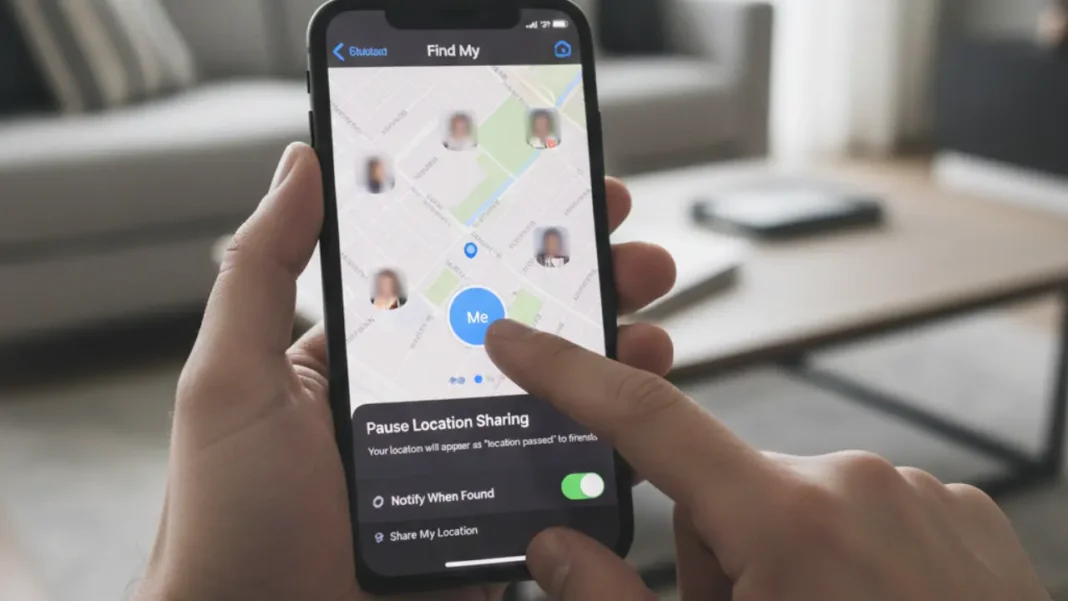

The Find My iPhone thing from Apple is usually there to help you find your phone if you lose it, keep tabs on your family, and generally make things more secure. But sometimes, you just want some privacy, right? Apple doesn’t have a straight-up pause button for Find My, but there are ways to stop sharing your location for a bit without deleting anything or turning your whole phone off.I’ll break down how to freeze your location on Find My iPhone, what happens when you do, and some need-to-knows before you mess with the settings.
Understanding how Find My works
Find My uses GPS, Bluetooth, Wi-Fi, and even other Apple devices to pinpoint where you are on a map. You can share this in two main ways:
- With people, like your family or friends.
- With your own stuff, like your iPhone, iPad, Mac, or AirTag.
Pausing usually means just hitting pause on one of these, not shutting down your whole phone.
Cutting Off Location Sharing to People
If you just want to stop certain people from seeing where you are, but still want Find My on, this is the easiest way.
Here’s how to stop sharing with someone specific:
- Open the Find My app on your iPhone.
- Hit the People tab at the bottom.
- Pick the person you want to hide from.
- Scroll down and tap Stop Sharing My Location.
This is good if you only want to hide from certain people. You’ll still be able to find your own phone, and Find My stays on if you lose it.
Turning Off Location Sharing Completely
Want to go dark to everyone? Apple lets you shut off location sharing for everything.
Here’s how:
- Open Settings.
- Tap your Apple ID name at the top.
- Tap Find My.
- Tap Share My Location.
- Flip the Share My Location switch off.
When you do this:
- No one can see where you are right now.
- Your gadgets still show up on your own Find My list.
- You can turn it back on whenever you want.
This is great if you want to go off the grid for a bit without messing with a bunch of stuff.
Airplane Mode: The Quick Pause
Airplane Mode is a super quick way to stop your location from updating.
Here’s what goes down when you turn it on:
- Your phone turns off Cellular, Wi-Fi, and Bluetooth.
- Your iPhone can’t update to show where you are now.
- Find My will show where you were last.
To use it:
- Swipe down to get to the Control Center.
- Tap the Airplane Mode icon.
Just remember, this also kills calls, texts, and internet, so use it when you just need a quick break.
Cutting Off Find My's Location Access
Another thing you can do is stop Find My from using location services.
here’s how it works:
- Open Settings.* Go to Privacy & Security.
- Tap Location Services.
- Scroll down and tap Find My.
- Pick Never or While Using the App.
Never completely stops Find My from tracking you, but you also won’t be able to find your phone if it gets lost. Apple might give you a heads-up before you do this.
What Happens When You Pause?
Heads up before you change anything: People you share with won’t see where you are in real-time,Find My might show an old location,Lost Mode might not work right,Safety features that use location might not work,Find My is made as a security thing, so pausing it cuts down on some safety.
Things Apple does not allow
Apple keeps a close watch on your location info to keep it private. Just so you know, here’s what you can’t do:
- Fake your location in Find My.
- Pause Find My without actually changing settings.
- Hide where you are while still looking like you’re moving.
Any app that says it can do this is probably sketchy and could steal your info.
When Pausing Makes Sense
It’s okay to pause location sharing when:
- You want some personal privacy for a bit.
- You are getting too many location notifications.
- You want to stop family tracking for a bit.
- You’re traveling and want to limit what info you share.
Apple lets you take control, but it also makes sure people know when you stop sharing.
Final thoughts
Even though there’s no simple pause button for Find My iPhone, Apple gives you some clear ways to stop sharing your location for a bit. Whether you stop sharing with people, turn off location services, or use Airplane Mode, it depends on how much privacy you want and for how long.The main thing is to know what each thing does so you can balance privacy and security without losing the stuff that matters. And when you’re ready, you can turn everything back on in a few taps, which makes Find My useful for every day.