
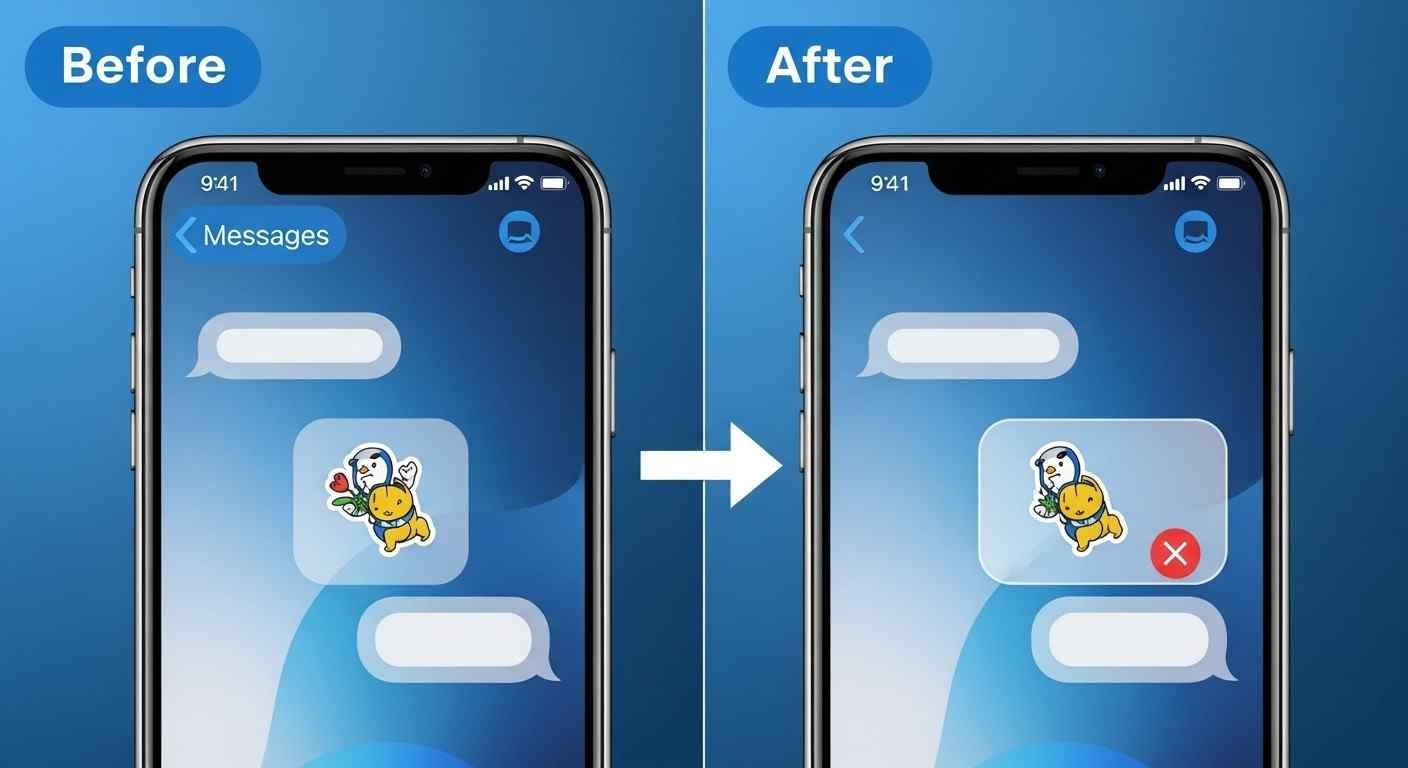

iMessage is a favorite for tons of folks because it’s quick, safe, and has cool stuff to make texting more fun, like Memojis, emojis, GIFs, and stickers. Stickers are a big part of how we chat now, letting us show feelings or crack jokes with cool animations.But, those sticker packs? They can pile up fast. Maybe you went overboard downloading, or your iMessage drawer is a mess with sticker apps you don’t even use anymore. If you’re wondering how to delete these stickers on your iPhone, you’re not alone. Lots of users search this every month, and it’s not always obvious, especially with updates changing how iMessage apps work.This guide will show you how to delete, hide, or just deal with stickers on your iPhone – Memoji stickers, App Store packs, or other apps that pop up in iMessage. Plus, some tips for cleaning up your app drawer and saving space.
Covered topics
What’s Up with Stickers on iPhone?
Before we get to deleting, here’s what kinds of stickers you might have:
- Memoji Stickers: If you make a Memoji (that animated avatar of you), Apple makes a sticker pack from it.
- App Store Sticker Packs: These are packs you grab right from the iMessage App Store. They could be movie-themed, emoji-based, animal stickers, or for holidays.
- Other Sticker Apps: Some apps, like Bitmoji or games, throw stickers into iMessage. They show up once you install the main app.
All these stickers show up in the iMessage app drawer (that’s the row of icons over your keyboard). It can get messy if you install too many.
Why Bother Deleting Stickers?
Stickers are fun, sure, but you might want to get rid of them because:
- Cluttered Drawer: Too many icons makes it tough to find what you need.
- Storage Hogs: Animated or big sticker packs eat up space.
- Old Stickers: Christmas or Halloween packs? Those don’t make sense all year.
- Speed: Getting rid of packs you don’t use can help iMessage run better.
Whatever the reason, Apple gives you a few ways to ditch or hide stickers.
How to Delete Sticker Packs from iMessage
Got stickers straight from the iMessage App Store? Okay, here’s how you can trash those stickers straight from the Messages app:
Open Messages: Just fire up the Messages app on your iPhone. Any conversation will work.Spot the App Drawer: Look at the bottom, and you’ll see icons like Photos, the App Store, and stickers. Swipe until you come across your sticker packs.Tap More: On the left, click the three dots (•••). This opens a list of all your iMessage apps and sticker packs.Edit iMessage Apps: Tap “Edit”. Okay, so here’s where you can see all your sticker packs and apps inside iMessage.
Remove or Turn Off Stickers:
- To hide a pack, flip the switch next to it to “off.”
- To delete it for good, tap the minus (-) button by its name.
- Once deleted, it’s gone from your app drawer.
How to Delete Sticker Apps from the iPhone App Store
Sticker packs from the iMessage App Store act like regular apps. To fully remove them: Go to your Home Screen to find the sticker app (“Cat Emoji Stickers,” “Bitmoji,” etc.). Keep pressing on the app icon until a menu shows up. Select “Remove App.” Press “Delete App” to make it stick. Done! All the stickers from that app vanish from your Messages.Want them back? Just reinstall the app from the App Store.
How to Hide Stickers (Without Deleting)
Don’t want to delete a pack for good? Maybe you’ll want it later. Just hide it: Open Messages and tap the three dots (•••) in the app drawer. Tap “Edit.” Under “In the App Drawer,” turn off the switch next to the sticker pack. This hides it without deleting. Turn it back on later when you need it.
Manage Stickers Through iPhone Settings
You can fix things in the Settings app! See all your iMessage apps in one spot.
- Go to “Settings” → “Messages” → “iMessage Apps.”
- See the list of apps and stickers in iMessage?
- Turn off any apps you don’t want in Messages.
- This is great if you have apps (like food delivery or social media) that auto-add stickers.
Bonus: Clean Up Your App Drawer
Deleting too much? Just rearrange the iMessage app drawer:Tap the three dots (•••) in Messages. Tap “Edit.”Use the drag handles (three lines on the right) to move stickers and apps. Put your favorites up top for faster use.This makes messaging way smoother.
After Deleting Stickers
Deleting a sticker pack removes it from your iMessage drawer and should free up space. If you got the stickers from the App Store, the app is also removed from your iPhone.Don’t stress — you can reinstall sticker packs anytime.
- Open the iMessage App Store.
- Tap “Search” and type the sticker pack’s name.
- Tap “Get” to reinstall.
- Your stickers will be back in the app drawer.
Why a Clean iMessage Matters
Cleaning up stickers might seem small, but it helps your iPhone experience.Saves Time: No more scrolling through loads of icons.More Space: Great if your iPhone’s got limited room.Tidier:Keeps your messages looking nice and organized.Fewer Distractions: Chatting is simpler.A little cleaning makes things way easier.
Final Thoughts
iMessage has tons of cool tools, and stickers are a blast. Like anything, too many can make a mess. Luckily, Apple makes it easy to delete or hide stickers, deal with Memoji stickers, and get organized.Delete stickers on your iPhone using this guide. Save space, and get a cleaner, faster messaging experience. Miss your stickers? Reinstalling is super quick!Tidy up your iMessage today, and make chatting better!